RPS Sample Scenario - Tourism
The Rapid Provisioning System is designed to provide a mobile, modular, and extensible automations framework that allows coded automations activities to be executed across a wide area network environment with limited connectivity and bandwidth. The breadth of customization options can sometimes be overwhelming, so this Sample Scenario has been designed as an example of what RPS can do even on a small scale. A working knowledge of RPS entities and architecture is recommended prior to reading this guide. It is recommended that this sample data NOT be imported into a production environment.
Sample Dataset
Tourism Sample Dataset
In this example, RPS is used to support the technical operations of a Grand Canyon Touring company, GC Tour Guides. GC Tour Guides must rely on satellite and line-of-sight networking solutions for guides on tour, due to the extreme geology of the terrain and lack of reliable network connectivity on tour routes. Guides are equipped with a handheld device that contains all the necessary information and applications to get through their tour routes, including maps, a GPS tracker, communications services such as email and instant messaging, and inventory management. Additionally, guides take a minimum of two pack animals – mostly donkeys – with them on the trails. Each donkey has a tracker attached with sensors that detect and report on many environmental and biological events or changes, such as GPS coordinates, current heading, humidity, and even health statistics of the donkey, such as skin temperature, heart rate, number of steps and so on.
GC Tour Guides has deployed RPS to automate configuration and data management between the guides’ handhelds, the pack animals’ trackers, and headquarters. Additionally, RPS is used to transfer patches and updated map files to these devices. Finally, GC Tour Guides defines and deploys the configuration of their devices through PowerShell Desired State Configuration.
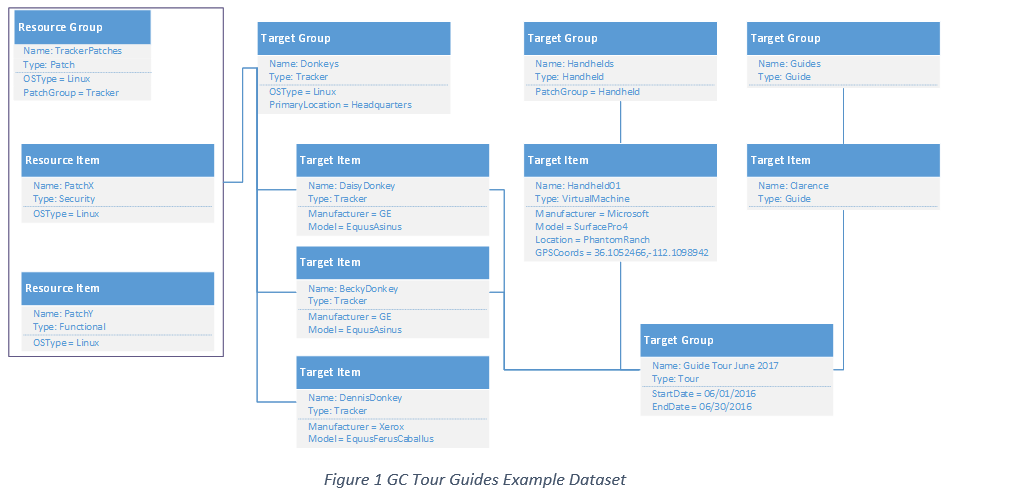
The donkeys are grouped together in a Target Group (TG) called “Donkeys” with the type “Tracker”. Each Donkey is defined as a Target Item (TI) within the Donkeys TG. Target Items can have several custom properties assigned, and in this example, we have defined Manufacturer and Model as custom TI properties. Another TG is created for the guides, with a guide TI named “Clarence”. Handheld TIs are grouped in a TG called Handhelds.
Before a guide leaves on a tour, a TG is created with all the entities that are scheduled to go on the tour. In our example, the guide Clarence, two donkeys, and a handheld are scheduled for June 2017 tour within a TG called “Guide Tour June 2017”. By grouping the entities within a TG, inventory can be tracked and alerts can be set to go off if a Donkey TI’s GPS Coordinates drift too far from the Handheld TI’s GPS Coordinates, for example.
Continuing, we group two Patches as Resource Items (RI) within a Resource Group (RG) called “TrackerPatches”. These are patches that will apply to just Tracker TIs. Finally, the Patch RG is associated with the Donkeys TG using a Resource Assignment (RA), which creates a link between each patch RI and applicable donkey TI. Figure 1 illustrates the example dataset.
Importing Sample Data
A fully-functioning RPS Node is required to import the sample data from the script Import-TourGuidesGCSampleData.ps1 (located at $\Documents\Samples). To import the sample data, simply run the script from any RPS machine from a PowerShell console as shown in Figure 2. You will initially be prompted to clean the RPS database of any existing RPS Entities.

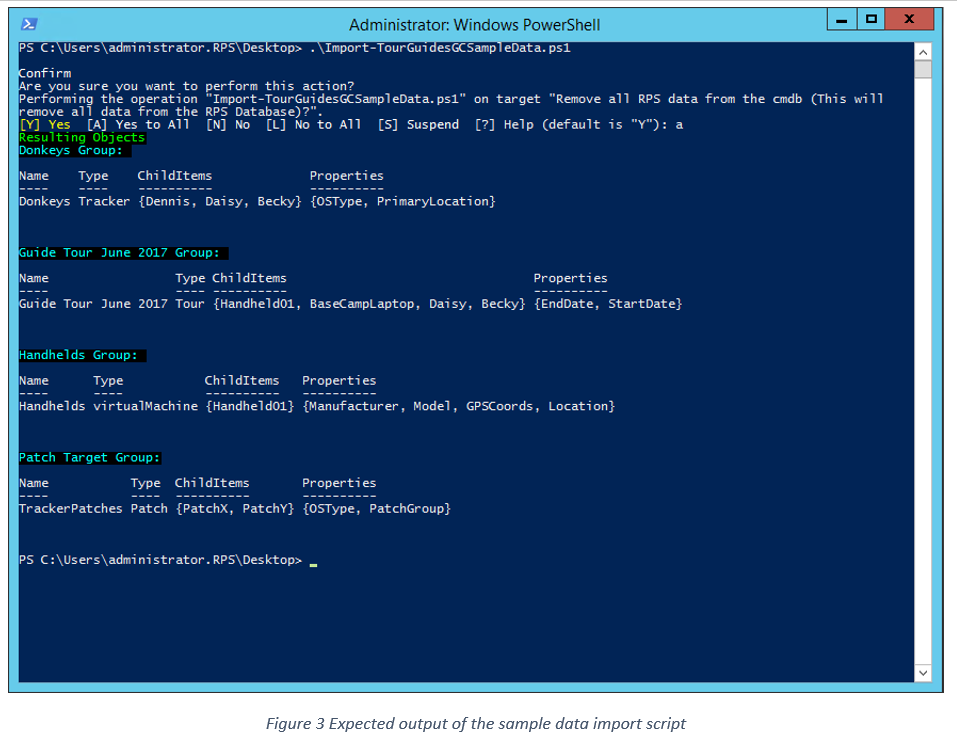
Proceed as necessary, and the objects described in this document will be created in the RPS CMDB. Once the data is imported (expected output is shown in Figure 3), you can begin manipulating the data as necessary to familiarize yourself with the RPS system.
Desired State Configuration
GC Tour Guides would like to configure Clarence’s handheld with DSC to ensure that it is in the correct state during expeditions.
For this scenario, GC Tour Guides has decided that one of RPS’s existing DSC partial configurations will work for their needs. If this was not the case, they could author their own DSC partial configuration and add it to the system.
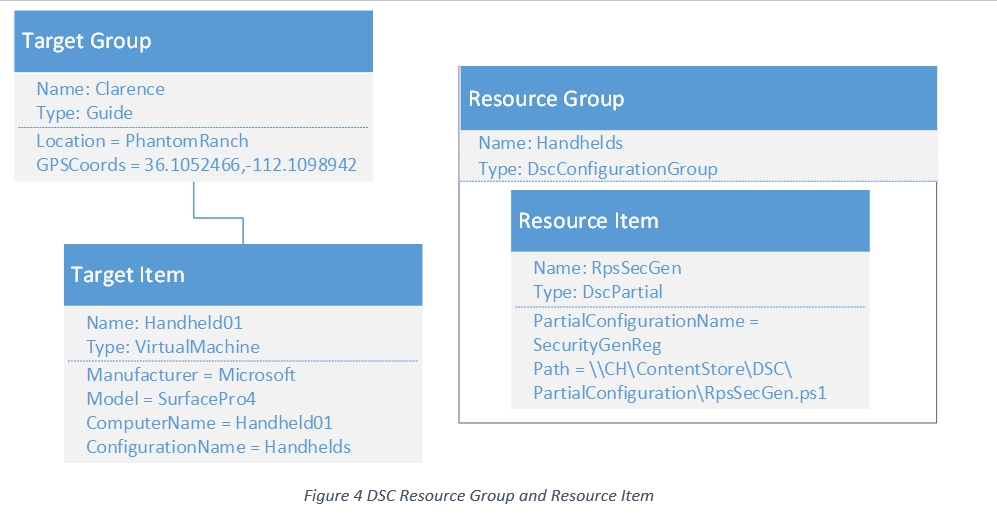
Before the configuration can be applied we need to add some information to the database. Figure 4 below displays a partial section of the entity graph from Figure 1 with supplemental information specific to this DSC example. Two properties – ComputerName and ConfigurationName – have been added to the Handheld01 Target Item. Additionally, a Resource Group has been added that defines the configuration applied to the handheld. For more detailed information on how these properties are connected and what other DSC features are supported by RPS, reference the DSC specific documentation listed in the Supporting Documentation section of this document.
Executing the Configuration
With the additional supporting DSC elements in place, a Task Item can be generated to execute the RPS Start-Dsc Runbook (which will apply the DSC configuration) and a Task Assignment to initialize the Runbook.
Executing the Import-TourGuidesGCSampleData.ps1 script with the DscDemo switch will implement the DSC configurations with the sample dataset.
Note
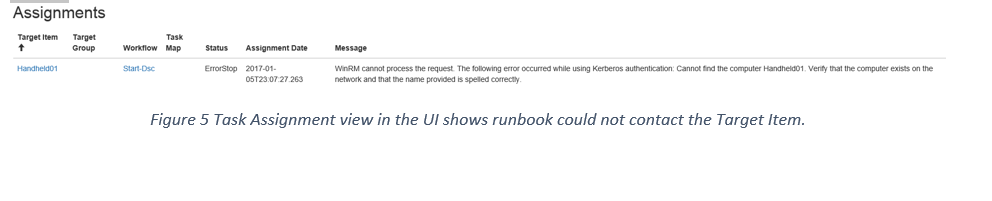
After running the Import-TourGuidesGCSampleData.ps1 script you will be able to view the process of the configuration within the RPS website. Since the hardware does not exist, it is unreachable, so the Runbook fails and displays the error though the UI.
Content Delivery Network
On Patch Tuesday, the GC guides are leading a group through the Grand Canyon. The GC IT team would like to patch the donkey’s trackers with security patch X. First, however, they need to use the RPS CDN to distribute the patch from the parent RPS server stack to the Child RPS server.
To accomplish this goal, they will need to update their database to configure DFS-R to replicate the patch files. For this example, our script Import-TourGuidesGCSampleData.ps1 script with the CdnDemo switch will handle making the changes for us.
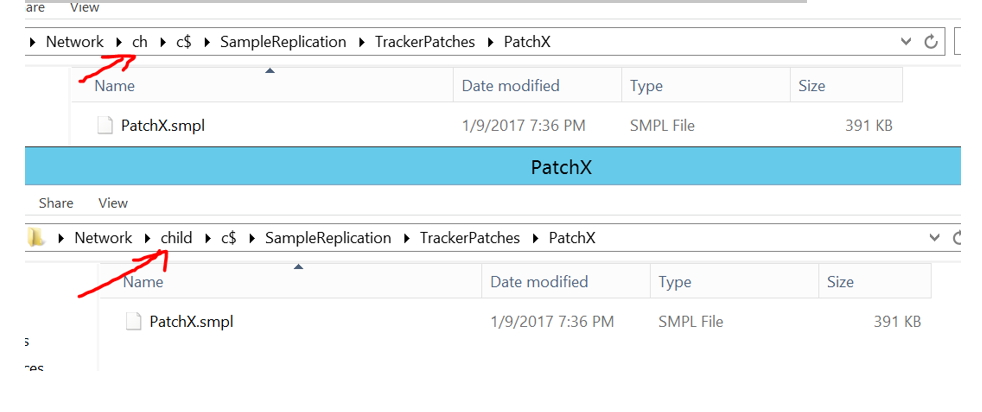
First, the script will create the below directory structure on our DFS-R endpoint in the parent node (the CH server).
| C:\SampleReplication
|        TrackerPatches
|                PatchX
|                        PatchX.smpl
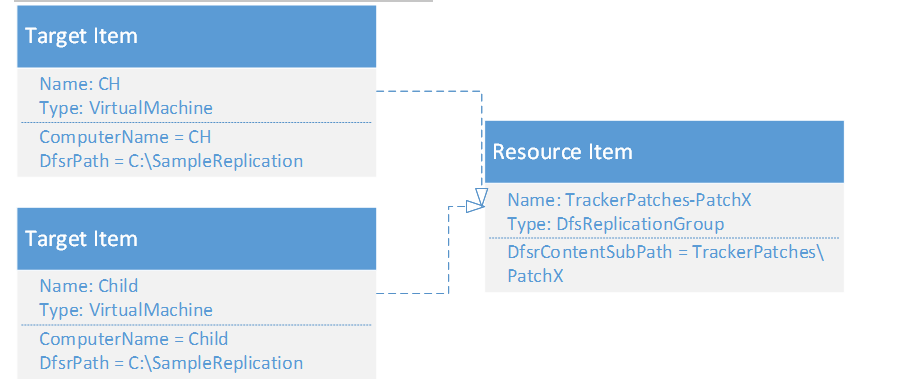
After the directory structure is created the CMDB is used to create the resource item TrackerPatches-PatchX as well as a replication group for the directory. Once this is completed the CH and Child target items are created or updated with the DfsrPath properties. Since DFS-R can replicate information to different relevant paths on each endpoint, each target items sets its DfsrPath that is concatenated with the resource item’s property DfsrContentSubPath. This allows each endpoint to specify its own location, but supports a reasonable usage of relevant paths during automation. An assignment is created between the CH and Child target items with the DfsReplicationGroup.
In the end the RPS CMDB matches the below.
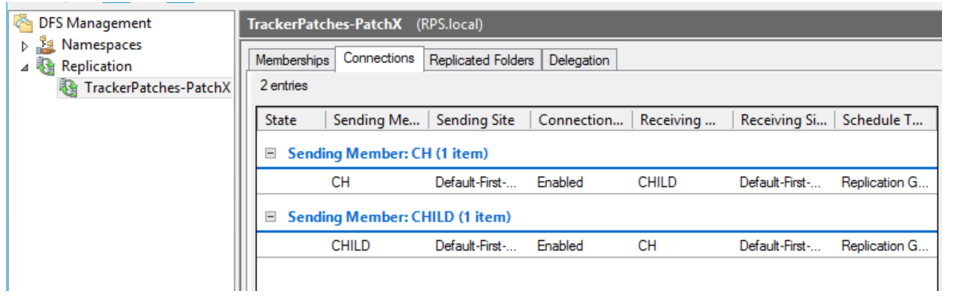
The DFS management console shows a replication group with two members, CH and Child.
After waiting a few minutes the CH and Child server should have matching directories.
Sync Service
The GC Tour Guides company would like to administer and monitor patching and weather update tasks from their main office (HQ). They will use a mobile laptop acting as a full RPS Node to sync with HQ. The RPS Sync Service runs in the background and synchronizes Target Items, Resources and Tasking data down to a child node and telemetry data back up to the parent node.
In our demo, the RpsChild VM will act as the mobile laptop. We’ll assign Target Items which are part of a guided tour to the Child Node, and the RPS Sync Service will automatically synchronize the data and related tasks to that node when a connection is available. We’ll create a TaskMap to simulate update of our weather app and update to the latest weather data.
Run the Demo
Run the Import-TourGuidesGCSampleData.ps1 script on the CH.RPS.local VM with the -SyncDemo switch to demonstrate how the Sync Service will synchronize automations to a child node and return telemetry data.
Verify Target Item and Assignments
From the SMA.RPS.local VM, open RPS Web at http://localhost:8080. You should see containers imported from the sample script. Although it isn’t visible here, the BaseCampLaptop Target Item (TI) is assigned to the Child.RPS.local Node, and all automations will run there.
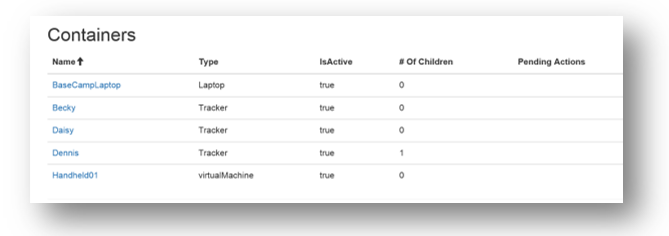
The BaseCampLaptop TI is assigned to a Task Map with two sequential steps. Step 1 is an approval step for updating the Weather App, and Step 2 imports the latest weather data. Click on the BaseCampLaptop link or navigate to Tasking, Assignments to see the two tasks. Initially, the Status should appear to be NotReady, but after a few minutes, Step 1 will run on the child node.
Note
The two steps are sample runbooks which are imported into the c:/source/runbooks/ folder on the child VM.
DSC is used to import any runbooks in that folder into SMA, so we must wait for that process to complete.
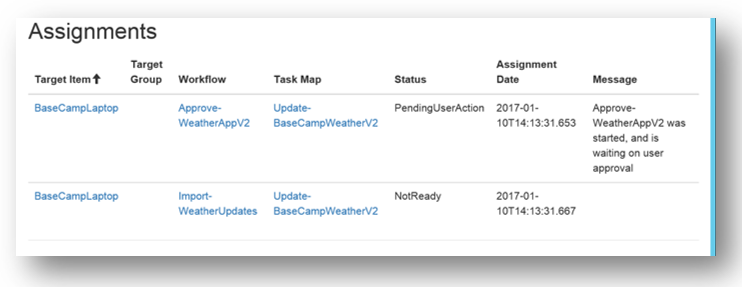
Open RPS Web on the child VM. Notice that the BaseCampLaptop TI has been synchronized from the parent node, but not the other items. All the related Tasking and Target data has been synchronized as well.
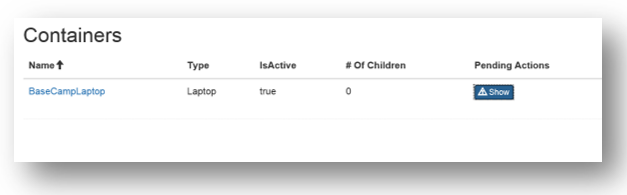
Step 1 - Approve Weather App Update
The first assignment in our Task Map requires user approval. This approval can be done via RPS Web at the parent (SMA.RPS.local) or child (child.RPS.local) node.
The first Task Assignment should be in the PendingUserAction status, and you will see a button to show Pending Actions. Click the Show button to open the approval.
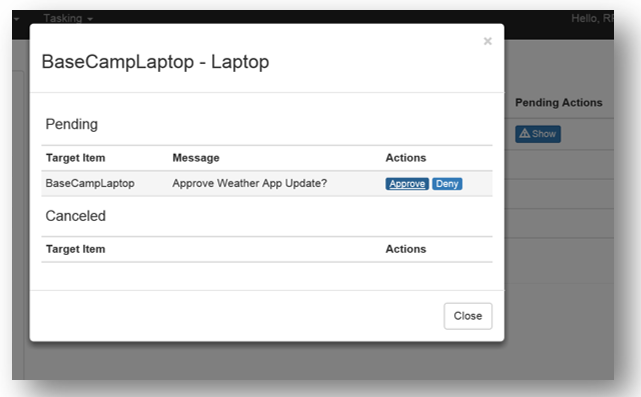
After approval, the Task Assignment status will be completed, and the status will synchronize between child and parent nodes.
Step 2 – Import Weather Data
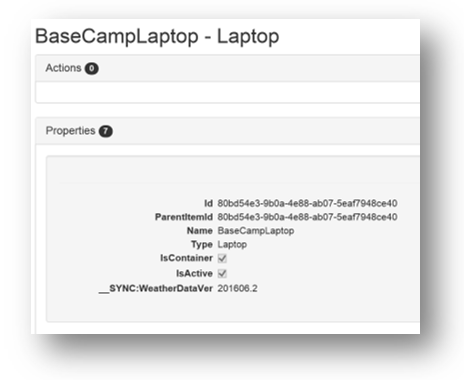
Step 2 will update to Ready status once Step 1 is complete. Then, the runbook to update the weather data will begin and the status will change to Running and finally Completed. The sample runbook, Import-WeatherData, will simulate the update by adding a special property to the BaseCampLaptop TI.
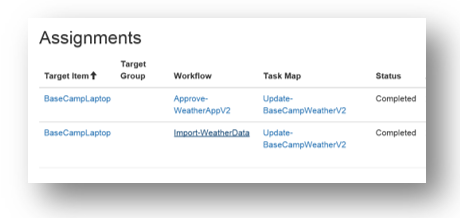
Open RPS Web on SMA.RPS.local to verify the Task Assignments are all synchronized. Click the BaseCampLaptop link to view the properties, and observe the property denoting the weather data version. This property is prefixed with “__SYNC:”, which tells the Sync Service to synchronize the value back to the parent node.
Additional Scenarios
This sample just uses a simple Target Item and Task Map to illustrate how the Sync Service operates and how automations can be viewed and controlled remotely. In a more complex scenario, we’d see more Nodes and Containers with many child items representing physical or virtual devices, and complex task maps that administer patches, collect data, etc. In the GC Tour Guides example, we could imagine that each guided group has a Laptop which acts as an RPS Node. The physical things, including donkeys, people, handheld devices and communication equipment may be represented as Target Items in one container. Headquarters, which acts as the parent RPS Node, would monitor all of the various groups in RPS Web.
Conclusion
RPS is a very customizable solution, which can sometimes be overwhelming. This sample scenario describes a simple implementation of how RPS can be used to accomplish automation tasks with minimal overhead.